Google Review QR Code Best Practices: Generate More Reviews

TL;DR
Google Review QR codes eliminate the friction that kills review completion rates by sending customers directly to your review form with one scan. Get your direct Google review link, generate a high-resolution code, and follow the 10:1 sizing rule for placement. Always test on multiple devices before printing to avoid dead links.
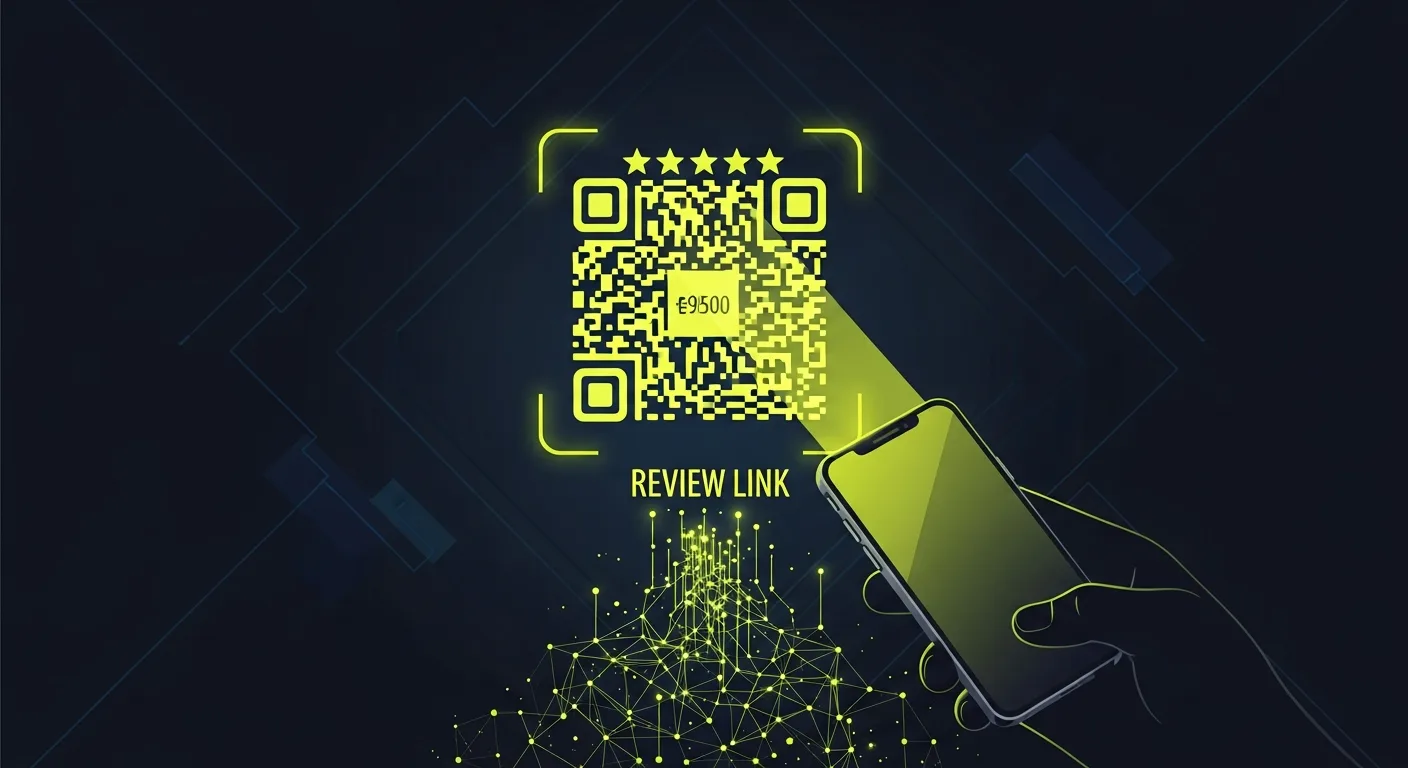
QR codes have become the bridge between offline customer experiences and online reviews. When set up correctly, they can increase review requests by 40% compared to verbal asks alone. This guide covers everything you need to know about using QR codes to generate more Google reviews for your business.
What Are Google Review QR Codes?
A Google review QR code is a scannable barcode that directs customers straight to your Google Business Profile review form. Instead of asking customers to search for your business online, they simply point their phone camera at the code and tap to leave a review. The process works like this: Customer scans QR code with their smartphone, phone opens the direct link to your Google review page, customer writes and submits their review, and the review appears on your Google Business Profile.
Why QR Codes Outperform Traditional Review Requests
Traditional methods create friction. Customers must remember your business name, find you online, and navigate to the review section. QR codes eliminate these steps. Research shows that reducing the number of steps in any process increases completion rates. A study by Baymard Institute found that every extra step in a process reduces completion by 10-15%. QR codes also work when customers are most motivated to leave feedback — right after their experience, while emotions are fresh.
How to Generate Your Google Review QR Code
Step 1: Get Your Google Review Link
First, you need your direct Google review URL: Open Google My Business or Google Business Profile, navigate to your business profile, click "Ask for reviews" or "Get more reviews", and copy the provided link. Alternatively, create a custom link using this format: https://g.page/r/[YOUR_BUSINESS_CID]/review Replace [YOUR_BUSINESS_CID] with your unique Customer ID found in your Google Business Profile URL.
Step 2: Choose a QR Code Generator
Free options include QR Code Monkey, QR Code Generator, and Google's own URL shortener (discontinued but alternatives exist). Paid options offer custom branding, analytics tracking, dynamic codes (editable after creation), and higher resolution images.
Step 3: Generate and Test
Paste your Google review link into the generator, customize design if desired, download high-resolution image (at least 300 DPI for print), and test with multiple devices before deploying.
Testing is non-negotiable. Scan the QR code from your phone, verify the review page loads, and confirm there's no 404 error breaking the link. A printed QR code pointing to a dead URL wastes every sign and card you've already distributed.
QR Code Design Best Practices
Size and Readability
Your QR code must be large enough to scan from a comfortable distance. Follow the 10:1 rule — if someone stands 10 inches away, the code should be at least 1 inch square. For different contexts: table tents need 1.5 x 1.5 inches minimum, business cards require 0.8 x 0.8 inches, posters should be 2 x 2 inches or larger, and digital displays must ensure reach from 3-6 feet.
Color and Contrast
Maintain high contrast between the QR code and background. Dark code on light background works best. If using colors, keep the code darker than the background, test scan-ability with different lighting conditions, and avoid low-contrast combinations like yellow on white.
Branding Elements
You can customize QR codes while maintaining features by adding your logo in the center (up to 15% of total area), using brand colors for the background, including a call-to-action around the code, and adding your business name for context.
Strategic QR Code Placement
High-Impact Locations
Point of Sale placement works because customers complete transactions at peak satisfaction for most positive experiences. Receipt Link adds QR codes to printed receipts since customers often review receipts later, creating a second chance for reach. Table Tents and Counters catch attention during wait times for restaurants and retail. Packaging and Bags include QR codes on packaging for products or shopping bags for services.
Timing Considerations
Service Businesses should display QR codes right away after service completion, while satisfaction is highest. Restaurants should place codes on tables for post-meal scanning, not during the dining experience. Retail should position near checkout after purchase decisions are complete. Healthcare should wait for appropriate moments — after successful appointments, not during stressful visits.
Creating Effective Call-to-Action Text
Your QR code needs compelling context. Generic "scan me" messages perform poorly. Instead, try positive experience focus with messages like "Loved your experience? Share it in 30 seconds!", "Help others discover us — scan to review", or "Quick review = helping future customers". Value-driven approaches include "Your feedback helps us improve", "Join 500+ happy customers who've reviewed us", or "Share your story with our community". Create urgency and ease with "Takes just 1 minute to help us grow", "Scan now while it's fresh in your mind", or "Quick tap to leave a Google review".
Tracking QR Code Performance
Analytics Integration
Use URL shorteners with analytics: Bitly (tracks clicks, location, device type), TinyURL (basic click tracking), or custom UTM parameters for Google Analytics.
Key Metrics to Monitor
Track Scan Rate (QR code scans per period), Conversion Rate (reviews received per scan), Location Performance (which placements generate most scans), and Time-based Patterns (peak scanning hours/days).
A/B Testing Variables
Test Design Elements including QR code size, color schemes, logo inclusion, and background designs. Compare Placement Locations such as checkout counter vs. table display, receipt vs. business card, and digital vs. physical placement. Experiment with Call-to-Action Text length (short vs. detailed), tone (formal vs. casual), and reward mention vs. simple request.
Common QR Code Mistakes to Avoid
Technical Errors
Wrong Link Destination means always testing QR codes lead to your actual Google review page, not your general business profile. Low Image Quality creates pixelated codes that won't scan reliably, so use vector formats when possible. Overcomplicated Designs with excessive customization can interfere with scanning features.
Placement Problems
Poor Timing occurs when asking for reviews during negative experiences, which backfires. Train staff to recognize appropriate moments. Inaccessible Locations happen when QR codes are placed too high, too low, or in poor lighting where they won't get scanned. Competing Elements in cluttered environments make QR codes easy to miss, so give them space to stand out.
Communication Issues
Missing Context means QR codes without explanation confuse customers, so always include brief instructions. Generic Messaging uses bland call-to-action text that doesn't motivate action, so make it specific and engaging. No Follow-up means one QR code placement isn't enough, so create multiple touchpoints throughout the customer journey.
Advanced QR Code Strategies
Dynamic QR Codes
Dynamic codes let you change the destination URL without reprinting materials. Benefits include updating seasonal campaigns, A/B testing different landing pages, switching between review platforms, and tracking performance across campaigns.
Multi-Platform Integration
Don't limit yourself to Google reviews. Create QR codes that rotate between review platforms, link to a landing page with multiple review options, include social media profile links, and connect to review management tools for streamlined responses.
Personalized Experiences
For businesses with customer data, generate unique QR codes per customer, pre-fill review forms with service details, customize thank-you messages, and track individual customer reach.
Industry-Specific QR Code Applications
Restaurants
Table Tent Strategy places QR codes on table tents with messaging like "Enjoyed your meal? Help others discover us!" Receipt Link adds QR codes to printed receipts with timing like "Review us tomorrow and help local diners find great food." Digital Menu Links include review QR codes on digital menus for easy access.
Healthcare Practices
Post-Appointment Timing provides QR codes after successful appointments, not during stressful visits. Waiting Room Materials include codes on educational materials patients review while waiting. Follow-up Messages add QR codes to appointment reminder emails or texts.
Retail Stores
Shopping Bag Link prints QR codes on shopping bags for post-purchase reach. Checkout Counter Displays position codes where customers wait during payment processing. Product Packaging includes QR codes on product packaging for ongoing brand reach.
QR Code Security and Privacy Considerations
Link Safety
Always use official Google review links. Avoid shortened URLs that hide destinations, third-party redirect services, and links that collect unnecessary personal data.
Customer Privacy
Be transparent about what happens when customers scan by clearly stating the destination ("Scan to review us on Google"), don't collect extra data without permission, and respect customers who decline to review.
Measuring Success and ROI
Key Performance Indicators
Review Volume tracks monthly review increases after QR code setup. Review Quality tracks average star ratings and review length. Response Time measures how quickly customers leave reviews after scanning. Customer Reach tracks repeat customers who interact with QR codes multiple times.
ROI Calculation
Calculate Cost Investment including QR code creation, printing, and staff training. Measure Review Increase in extra monthly reviews generated. Assess Business Impact through increased inquiries, bookings, or sales attributed to improved online reputation. Consider Lifetime Value including long-term benefits of improved search rankings and social proof. For most small businesses, QR code ROI becomes positive within 2-3 months due to low setup costs and immediate results.
Future-Proofing Your QR Code Strategy
Technology Trends
NFC Link offers near-field contact tap-to-review alternatives for newer smartphones. Voice Activation through "Hey Google, leave a review for [Business Name]" commands are becoming more common. Augmented Reality provides AR-enhanced QR codes with interactive review experiences.
Platform Evolution
Google continues updating review processes. Stay current with policy changes affecting review solicitation, new Google Business Profile features, mobile app updates that change user experience, and algorithm adjustments that impact review reach. Professional review management platforms help businesses adapt to these changes on its own.
Getting Started: Your QR Code Action Plan
Week 1: Setup
Generate your Google review link, create 2-3 QR code designs, test codes on multiple devices, and choose initial placement locations.
Week 2: Implementation
Print QR codes for chosen locations, train staff on appropriate usage, set up tracking systems, and launch with soft rollout.
Week 3: Optimization
Analyze initial performance data, adjust placement based on results, refine call-to-action messaging, and expand to extra locations.
Ongoing: Monitor and Improve
Track monthly performance metrics, A/B test new designs and placements, update codes based on seasonal campaigns, and integrate feedback into business improvements.
Frequently Asked Questions
How do I create a QR code for Google reviews?
Generate your Google review link from your Business Profile, then use a QR code generator like QR Code Monkey or similar free tools. Paste your review link, customize if desired, and download a high-resolution image for printing.
What size should my Google review QR code be?
Follow the 10:1 rule — make your QR code 1 inch for every 10 inches of scanning distance. For table displays, use at least 1.5 x 1.5 inches. For business cards, 0.8 x 0.8 inches minimum. Always test scanning from typical viewing distances.
Can I customize my Google review QR code with colors and logos?
Yes, but maintain high contrast and keep customizations under 15% of the total code area. Dark codes on light backgrounds scan best. Test thoroughly with different devices and lighting conditions before final deployment.
Where should I place QR codes to get more Google reviews?
Place QR codes at high-satisfaction moments: point of sale, on receipts, table displays, and packaging. Avoid placement during stressful contacts. The best locations are where customers naturally pause and have positive experiences fresh in mind.
How can I track the performance of my Google review QR codes?
Use URL shorteners with analytics like Bitly, or add UTM parameters to track scans in Google Analytics. Track scan rates, review conversion rates, and location performance. A/B test different designs and placements to improve results.
Are there any legal issues with using QR codes for Google reviews?
QR codes themselves are legal, but follow Google's review policy guidelines. Don't incentivize reviews, ask only satisfied customers, and never pay for reviews. Be transparent about what the QR code does and respect customers who choose not to participate.
Ready to grow?
Turn happy customers into 5-star reviews
Praising.ai automates review requests for Google, Trustpilot and the other review sites you use. Businesses see an average 3x increase in reviews within 30 days.
Written by
· 106 articlesMarcus Webb
Reputation Management Specialist
Marcus has spent over a decade helping small and medium businesses understand online reviews and local search. He writes about Google Business Profile, review automation, and the mechanics of reputation management—always from the angle of what actually moves the needle for independent businesses.
View all articlesGet weekly review tips
Actionable strategies to grow reviews and revenue, straight to your inbox.
No spam. Unsubscribe anytime.
Get more 5-star reviews on autopilot
Praising.ai automates review requests for Google, Trustpilot and the other review sites you use — free to start, no credit card required.
Start FreeFree 14-day trial