Try Praising.ai free

AI-powered review management

Start Free
Social Proof

How to Find Your Google Reviews in 2026 A Complete Guide

Praising.ai
Praising.ai·12 min read
Share

How to Find Your Google Reviews in 2026 A Complete Guide Online reviews are incredibly powerful in 2026, with almost all shoppers checking them before making a purchase. The majority of consumers state that reviews significantly influence their buying decisions. This guide will show you how to easily see and manage my Google reviews, whether it's for your personal feedback or your business. You'll learn to effectively handle them across various Google platforms, making the process clear and understandable for everyone.

Key Takeaways

  • You can find your Google reviews on a computer. Use Google Maps and go to 'Your contributions'.

  • You can find your Google reviews on your phone. Use the Google Maps app or Google Play app.

  • You can change or delete your Google reviews. Go to 'Your contributions' in Google Maps.

  • Sometimes Google reviews do not show up right away. Google checks reviews to make sure they are real.

  • Good Google reviews help your business. They make people trust you and can increase sales.

Finding My Google Reviews

Finding My Google Reviews You want to find your personal Google reviews. This section gives you clear steps. You can easily see your feedback on different devices.

How to See My Google Reviews on Desktop

You can easily find your Google reviews on a desktop computer. Follow these simple steps to see my Google reviews:

  • Open Google Maps: First, go to maps.google.com in your web browser.

  • Sign in: Click "Sign in" in the top right corner. Enter your Gmail account details. This ensures you access your personal Google information.

  • Open the main menu: Look for the three-line menu icon. It is in the top left corner of the screen. Click on it.

  • Select 'Your contributions': A menu will appear. Choose "Your contributions" from this list.

  • Open the Reviews tab: You will see a contributions page. Click the "Reviews" tab there. This shows you all the reviews you have posted. You can now manage and see my Google reviews. These steps help you view your Google reviews quickly.

Locating Your Reviews on Mobile

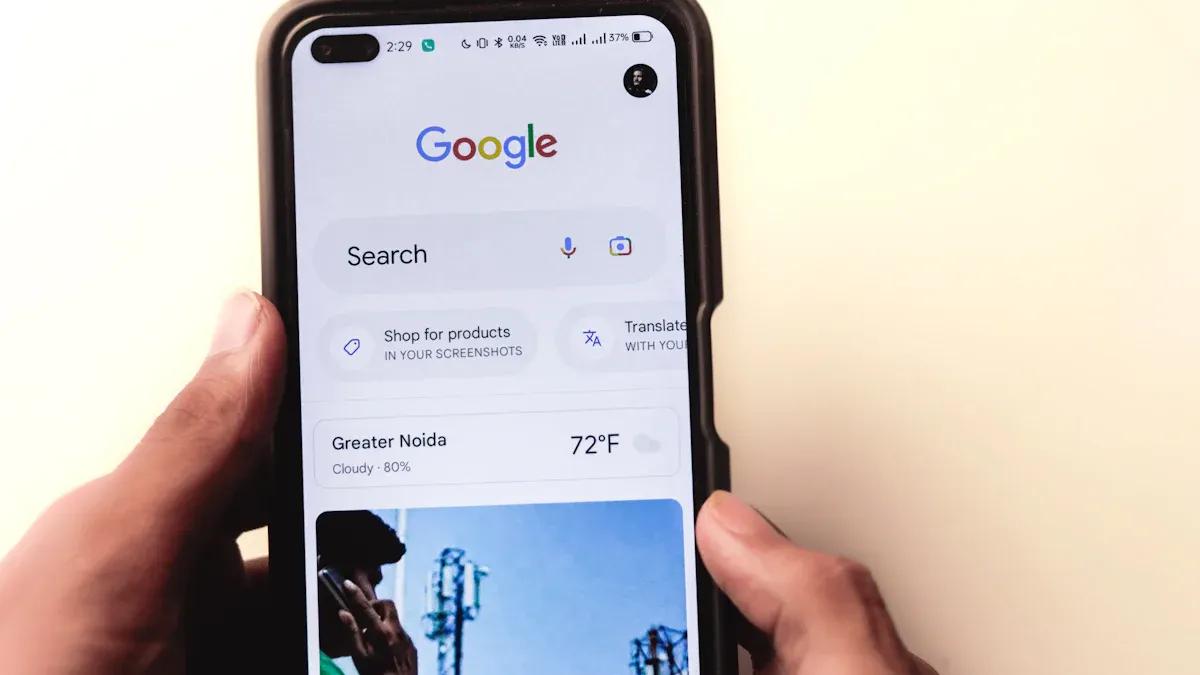
You can also locate your reviews on your mobile device. The Google Maps app is very helpful for this. You can also check the Google Play app for app reviews.

To see my Google reviews using the Google Maps app:

  • Open the Google Maps app: Start by opening the Google Maps app on your phone.

  • Tap your profile picture: Look for your profile picture. It is in the top-right corner. Tap it to open your account menu.

  • Choose 'Your contributions' or 'Your profile': From the menu, select "Your contributions" or "Your profile."

  • Tap the 'Reviews' tab: You will find a "Reviews" tab. Tap it to see all your written reviews. This includes your ratings, text, photos, and the names of businesses. You can open Google Maps and follow these steps to manage your reviews.

Another way to locate your reviews in the Google Maps app:

  • Open the Google Maps app: Open the Google Maps app on your phone.

  • Click 'Contribute': Find the "Contribute" link. It is in the menu bar at the bottom. Click on it.

  • Click 'View Profile': Then, click "View Profile." Scroll down to the "Reviews" section. Here, you can view all the reviews you have made.

If you want to see my Google reviews for apps:

  • Open the Google Play app: Open the Google Play app. Make sure you are signed in with the correct Google account.

  • Tap your profile picture: Tap your profile picture in the top right. Then, select "Manage apps & device."

  • Go to the 'Manage' tab: Move to the "Manage" tab. This shows all apps linked to your Google account.

  • Find your reviewed app: Find the specific app you reviewed. Tap on it.

  • Scroll to 'Ratings and reviews': Scroll down to "Ratings and reviews." You will see your review, star rating, and any photos. You can also edit or delete your review from here. The Google Maps app and Google Play app make it easy to find your reviews.

Accessing Reviews via Google Account Activity

Your Google account keeps a record of your activity. You can use this to view your Google reviews. This method helps you find reviews you might have forgotten.

  • Go to your Google Account: Open your web browser. Go to myaccount.google.com.

  • Sign in: Sign in with your Google account if you are not already.

  • Find 'Data & privacy': On the left-hand menu, click "Data & privacy."

  • Scroll to 'History settings': Scroll down to the "History settings" section.

  • Check 'My Activity': Click on "My Activity." This shows a timeline of your Google activity. You can filter this activity. Look for interactions related to Google Maps or Google Play. You can search for "reviews" or "contributions." This helps you see my Google reviews and manage them. These steps help you view your Google reviews through your account history.

Managing your Google reviews is very important. It helps your business. These reviews help you understand customers. They also help your business grow. When you manage your Google reviews, you learn a lot. You learn about customer experiences. You learn how your products work. This helps you make things better. It also makes customers happier. Answering reviews shows you listen. This can also help your search rankings.

Good Google reviews make people visit your website. More people click on your business. This tells Google your business is important. It tells Google you are trustworthy. This makes you more visible online. This leads to more visits. High star ratings make customers trust you. They are more likely to buy from you. They are more likely to book an appointment. Strong Google ratings can increase your sales. They also make your brand more known. They increase your money.

Businesses with good reviews sell more. They sell almost twice as much. A one-star rating increase can boost your money. It can boost it by 5-9%. Getting ten new reviews can increase sales. It can increase them by 2.8%. Most customers, 74% of them, trust businesses more. This is because of positive reviews. Also, 87% of customers will not use businesses. This is if they have less than four stars. Answering all your reviews can increase sales. It can increase them by 16.4%.

Viewing Your Google Play Store Reviews

You can easily find your app reviews on the Google Play Store. This section shows you how to see your feedback for apps. You can check these reviews on your computer or mobile device.

Finding Your App Reviews on Desktop

You can find your app reviews on the Google Play Store website. This helps you see all your past feedback. Follow these steps to locate your reviews:

  • Go to Google Play Store: Open your web browser. Type play.google.com into the address bar.

  • Sign in to your Google account: Look for the "Sign in" button. It is usually in the top right corner. Enter your Google account details. This ensures you access your personal reviews.

  • Access your library: Click on your profile picture. A menu will appear. Select "My apps" or "Library." This shows you all the apps you own.

  • Find your reviews: You might need to navigate through your app list. Look for a section or filter for "My reviews" or "My ratings." The Google Play Store organizes your contributions. You can see all your written reviews here. This helps you manage your Google reviews for apps.

Checking Your App Reviews on Mobile

You can also check your app reviews directly on your mobile device. The Google Play Store app makes this simple. You can quickly see your feedback.

  • Open the Google Play Store app: Find the Google Play Store app icon on your phone. Tap it to open the app.

  • Tap your profile icon: Look for your profile picture. It is in the top right corner of the screen. Tap on it.

  • Go to 'Manage apps & device': From the menu, select "Manage apps & device." This option leads you to your app management.

  • Navigate to 'Reviews': You will see different tabs. Tap on the "Reviews" tab. This tab displays all the reviews you have submitted. You can see your star ratings and comments. You can also edit or delete these reviews. This process helps you easily find your Google reviews for apps.

Managing and Troubleshooting Your Google Reviews

You can control what people see online. This means handling your own comments. This part shows you how. You can change or remove your reviews. You can also fix problems.

How to Edit a Google Review

You can easily change a Google review you wrote. It is a simple process. You can update your thoughts. You can also fix mistakes.

  • Go to Google Maps: Open Google Maps. Use your computer or phone.

  • Access your contributions: Click your profile picture. Choose "Your contributions."

  • Find the review: Go to the "Reviews" tab. Find the review you want to change.

  • Edit the review: Click the three dots. They are next to the review. Choose "Edit review." Make your changes. Then click "Post."

Changing a Google review is usually fine. There are no strict limits. But, if Google rejected your review, wait 48 hours. This lets Google's system reset. Then you can post a fixed version.

How to Delete a Google Review

You can also take away a Google review you wrote. This is a simple process.

  • Go to Google Maps: Open Google Maps. Use your computer or phone.

  • Access your contributions: Click your profile picture. Choose "Your contributions."

  • Find the review: Go to the "Reviews" tab. Find the review you want to remove.

  • Delete the review: Click the three dots. They are next to the review. Choose "Delete review." Say yes to confirm. Google will then remove it.

Common Issues with Google Reviews Not Showing

Sometimes, your Google reviews do not show up fast. This can be annoying. Many reasons explain this.

Google checks reviews. They want them to be real. Reviews can be taken down. This happens if they look fake. This includes many reviews at once. It also includes similar words. New accounts can also be flagged. Ads, links, or gifts can cause removal. Reviews from new accounts may have issues. Reviews from strange places can also be flagged. VPNs can also cause problems.

Reviews are not always live right away. They are checked by computers. This makes sure they are real. It also checks rules. Delays can happen. A review from a new account may take longer. Reviews from a strange place can also be slow. If you send many reviews, there can be delays. Most reviews show up fast. Some take a few hours. New accounts may take 24-72 hours. Some checks can take 1-5 days.

If your reviews are not showing, do these steps:

  • Verify Google Business Profile Permissions: Make sure you can manage reviews.

  • Check for Google Account Problems: Your Google account must be real. Log into the right account.

  • Clear Browser Cache and Cookies: This can fix computer issues.

  • Update Your Browser or Google Maps: Use the newest versions.

  • Try Different Devices or Browsers: See if your setup is the problem.

  • Log Out of Multiple Google Accounts: Use only one Google account.

  • Verify Your Google Business Profile: New businesses must prove who they are.

  • Wait for Publication: Reviews can take up to 48 hours. Sometimes it takes seven days.

  • Check for Incorrect Listing Information: Your business info must be correct.

  • Address Duplicate Google Business Pages: Have only one business listing.

You now know how to find your Google reviews. You also know how to manage them. Being active online is key for your business. Praising.ai helps with this. It makes the whole process easy. It sends many requests for reviews. It uses AI to answer your Google reviews. This helps you handle reviews well. Praising.ai fixes problems for businesses. It helps with not enough reviews. It also helps with slow replies. AI answers save a lot of time. They make replies faster. This makes customers happier. This means more Google reviews. It builds more trust. Your online presence gets stronger. Praising.ai is a great tool. It automates your review process. It boosts your business's good name. This works on Google and other sites. You can manage all customer reviews easily.

FAQ

How can I make my business's Google rating better?

Give great service. Ask happy customers for good reviews. Answer all reviews. This shows you care. A better rating brings more people.

Can I answer all my Google reviews?

Yes, you can answer all reviews. Answering customers is key. It shows you care. Praising.ai helps you reply well. This makes your rating better.

What if someone writes a bad review?

Answer bad reviews kindly. Thank them for their thoughts. Offer to fix things. Or say sorry. This can make a bad time good. Your answer can help your rating.

How often should I look at my business reviews?

You should check reviews often. Daily or weekly is good. This helps you know what customers think. You can answer fast. Checking often keeps your rating strong.

Why are Google reviews good for my business?

Google reviews help people trust you. They help people decide to buy. A good rating makes your business seen. More good reviews mean more business. They are key for your online name. This helps your business rating.

Share this post

Ready to grow?

Turn happy customers into 5-star reviews

Praising.ai automates review collection across Google, Trustpilot, Yelp, and 20+ platforms. Businesses see an average 3x increase in reviews within 30 days.

4.9/5
|500+ businesses|No credit card required

Get weekly review tips

Join 2,000+ business owners getting actionable strategies to grow reviews and revenue.

No spam. Unsubscribe anytime.