How to Leave a Google Review for a Business in 2026

TL;DR
Leaving a Google review takes under two minutes on any device — search the business on Google or Maps, click Write a review, select your star rating, add your comments, and hit Post. You need a Google account, but you can use a partial name for privacy. The steps are nearly identical on desktop, iPhone, and Android.
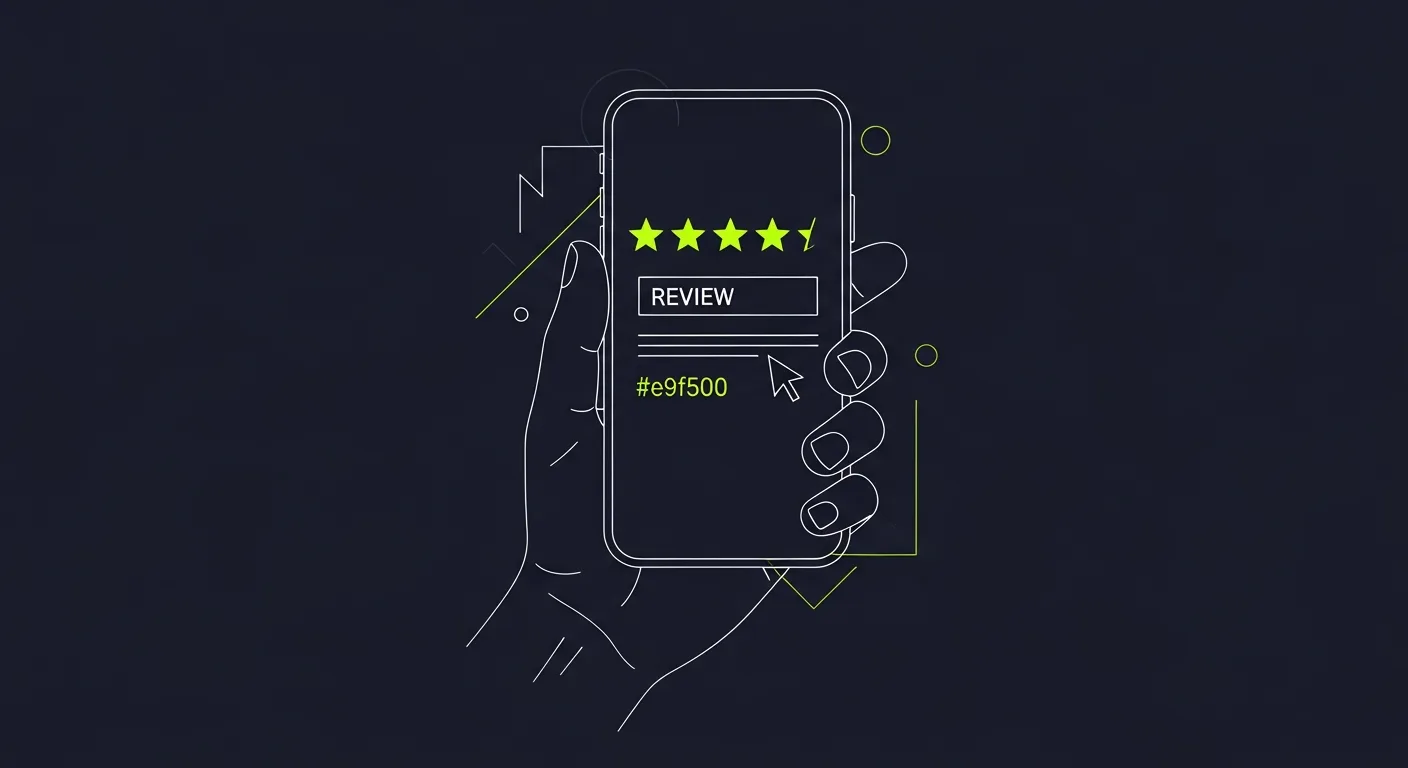
Leaving a Google review takes less than two minutes — but the process looks slightly different depending on whether you're on a phone, a laptop, or using the Google Maps app versus Google Search. This guide covers every method available in 2026, plus answers to the most common questions like whether you can hide or delete a review after posting it.
What You Need Before You Start
You need a Google account to leave a review. Reviews are tied to your Google profile name and photo — there's no anonymous option. If you want privacy, create a Google account using only your first name and last initial.
If you already use Gmail, Google Drive, or YouTube, you already have a Google account.
How to Leave a Google Review on Desktop
The fastest way on a computer is through Google Search or Google Maps.
Method 1: Google Search (Quickest)
- Open your browser and go to google.com
- Search for the business by name (e.g., "Riverside Dental Austin")
- In the Knowledge Panel on the right side of the results, scroll to the Reviews section
- Click Write a review
- A pop-up appears — sign in if prompted
- Select your star rating (1 to 5)
- Type your review in the text box
- Optionally add photos by clicking the camera icon
- Click Post
Your review appears on the business's Google listing immediately in most cases.
Method 2: Google Maps
- Go to maps.google.com
- Search for the business name in the search bar
- Click the business listing in the results
- In the left panel, scroll down to the Reviews section
- Click Write a review
- Complete your star rating and comment, then click Post
Google Maps gives you a slightly larger text editor, making it easier to write longer reviews.
How to Leave a Google Review on iPhone
Two options: the Google Maps app or Google Search in Safari/Chrome.
Google Maps App (iPhone)
- Open the Google Maps app
- Tap the Search bar and type the business name
- Tap the business from the results list
- Scroll down to the Reviews section
- Tap Write a review
- Select your star rating
- Write your comment (you can also add photos from your camera roll)
- Tap Post
Google Search on Safari or Chrome (iPhone)
- Open Safari or Chrome on your iPhone
- Search for the business name
- In the business knowledge panel below the ads, tap the star rating area
- A review card slides up — tap your star rating
- Add your written review and tap Post
This method works even if you don't have the Google Maps app installed.
How to Leave a Google Review on Android
Google Maps App (Android)
- Open Google Maps
- Search for the business
- Tap the listing
- Scroll to Reviews and tap Write a review
- Set your rating, write your review, and tap Post
Google Search on Chrome (Android)
- Open Chrome on your Android device
- Search for the business name
- In the search results, find the business information card
- Tap Reviews or the star rating
- Tap Write a review
- Complete your rating and comment, then tap Post
Writing a Google Review That Actually Gets Read
A one-star rating with no text or a generic "Great place!" helps no one. Here's how to write a review that other customers will actually find useful.
Lead With What You Experienced
Mention the specific service, product, or interaction. "I came in for a roof inspection after the hailstorm on May 3rd" is far more useful than "I used their roofing service."
Be Specific About What Was Good (or Bad)
Readers want details:
- How long did the wait take?
- Did staff go out of their way?
- Was the price as quoted?
- How was the quality compared to alternatives?
"They finished the job 2 days early and found a second leak we didn't know about — proactively fixed it at no extra cost" tells a story. "Good quality" does not.
Mention Timing and Context
Reviews are more credible with context: "Visited on a Saturday afternoon with three kids" or "Called for an emergency on a Sunday night" helps readers with similar situations understand if your experience applies to them.
Add Photos When You Can
Reviews with photos consistently get significantly more views than text-only reviews. A photo of the finished work, the storefront, the meal, or a before/after comparison adds credibility that words can't fully provide.
Keep Negative Reviews Fair
If your experience was mostly positive with one issue, say so: "The food was excellent but our server forgot to mention the daily specials and we waited 40 minutes longer than quoted for a table on a Thursday night." Balanced reviews read as credible.
Can You Edit a Google Review After Posting?
Yes. You can edit a review at any time after posting it.
- Open Google Maps (app or browser)
- Tap or click your profile picture in the top right
- Go to Your contributions
- Select Reviews
- Find the review you want to change
- Tap the three-dot menu (⋮) or pencil icon
- Select Edit review
- Make your changes and click Save
Your edited review replaces the original. The review date shows when you first posted it, though Google sometimes adds a note that the review was updated.
Can You Hide a Google Review You Left?
No — you cannot hide a Google review. Your options are either to keep it visible or delete it permanently.
To delete a review you wrote:
- Open Google Maps (app or browser)
- Tap your profile picture → Your contributions → Reviews
- Find the review
- Tap the three-dot menu (⋮) → Delete review
- Confirm the deletion
Important: Deleted reviews are permanent. Google does not let you recover a deleted review. If you want to change what you said, use the edit option instead.
What Happens After You Leave a Review
After you post a review, a few things happen:
- The review goes live — usually within minutes, occasionally a few hours
- The business gets notified — the owner sees new reviews in their Google Business Profile dashboard
- The owner may respond — businesses can reply publicly to your review
- Your review affects their ranking — more recent reviews with higher ratings improve a business's visibility in Google Maps search results
Why Your Review Matters More Than You Think
Google reviews are one of the most trusted forms of social proof for local businesses. Studies consistently show that over 90% of consumers read reviews before visiting a local business, and the majority only consider businesses with 4-star ratings or higher.
A single genuine, detailed review from a real customer carries more weight than five generic one-liners. If you had a notable experience — good or bad — taking two minutes to describe it helps the next customer make an informed decision and gives the business specific feedback they can act on.
Frequently Asked Questions
How do I leave a Google review for a business?
Search for the business on Google Maps or Google Search, click the business listing, scroll to Reviews, and click "Write a review." Sign in to your Google account, select a star rating, write your comments, and click Post.
Can you leave a Google review without a Google account?
No. A Google account is required. You can create one for free at accounts.google.com. For privacy, create an account using only your first name and last initial.
Can you hide a Google review you left?
No — you can only keep a review visible or delete it permanently. Go to Google Maps → Your contributions → Reviews → three-dot menu → Delete review. This action cannot be undone.
How long does a Google review take to appear?
Most reviews appear within minutes to a few hours. If a review doesn't show after 7 days, Google's spam filter may have flagged it. This sometimes happens with new accounts or reviews that contain certain patterns Google associates with spam.
Can I leave a Google review from my phone?
Yes. Use the Google Maps app (iPhone or Android), or search for the business in your browser. On mobile, tapping the star rating in a Google Search result opens the review form directly.
Can a business see who left a Google review?
Yes. Your Google account name and profile photo appear with every review. Businesses can read your reviews and respond to them publicly. Anonymous reviews are not possible on Google.
How do I leave a Google review if I can't find the business?
If the business doesn't appear in Google Search or Maps, they may not have a verified Google Business Profile yet. You can suggest the business be added via Google Maps (tap "Add a missing place"). Until they have a verified profile, you won't be able to leave a review.
Does leaving a Google review require the Google Maps app?
No. You can leave a review from any browser on your phone or computer using Google Search or maps.google.com. The Google Maps app makes it slightly easier on mobile, but it's not required.
Ready to grow?
Turn happy customers into 5-star reviews
Praising.ai automates review collection across Google, Trustpilot, Yelp, and 20+ platforms. Businesses see an average 3x increase in reviews within 30 days.
Written by
· 106 articlesMarcus Webb
Reputation Management Specialist
Marcus has spent over a decade helping small and medium businesses understand online reviews and local search. He writes about Google Business Profile, review automation, and the mechanics of reputation management—always from the angle of what actually moves the needle for independent businesses.
View all articlesGet weekly review tips
Actionable strategies to grow reviews and revenue, straight to your inbox.
No spam. Unsubscribe anytime.
Get more 5-star reviews on autopilot
Praising.ai automates review collection across Google, Trustpilot, and 20+ platforms — no credit card required.
Start FreeFree 14-day trial